First-Time Setup:
CUNY Login MFA TOTP with Microsoft Authenticator
-
Open CUNY MFA Self-Service (https://ssologin.cuny.edu/oaa/rui).
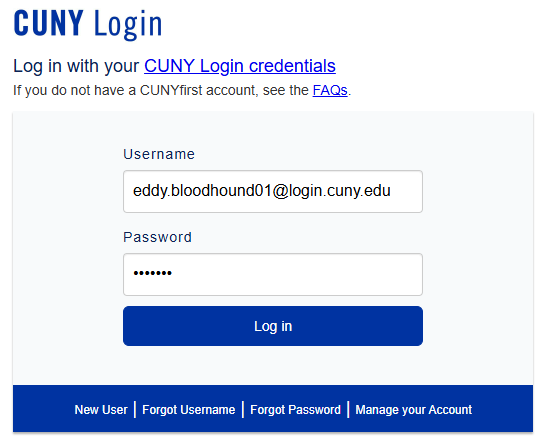
Step 1: Cuny login Screen -
Enter your CUNY Login username and password, then click Log In.
- If prompted to share your location, click Allow.
- An Oracle Access Manager page will display—click OK.
- On the Oracle Identity Management page, click Allow.
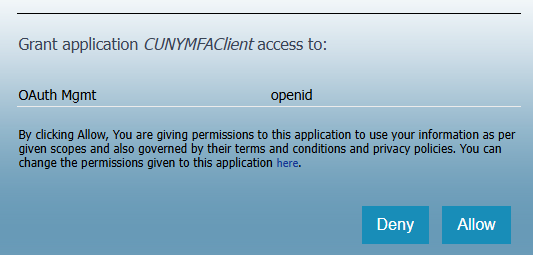
Step 2: Oracle Identity Management page -
On the “Hi, what are you managing today?” page, click Manage under My Authentication Factors.

Step 3: Landing page -
Click Add Authentication Factor.

Step 4: My Authentication Factors -
Choose Mobile Authenticator – TOTP.

Step 5: Choose Mobile Authenticator -
Enter a Friendly Name (e.g., “CUNY Login MFA”).
- On iPhones, use hyphens/underscores instead of spaces.

Step 6: Setup Mobile Authenticator Screen -
Open Microsoft Authenticator on your phone (Google Authenticator or Duo also work).
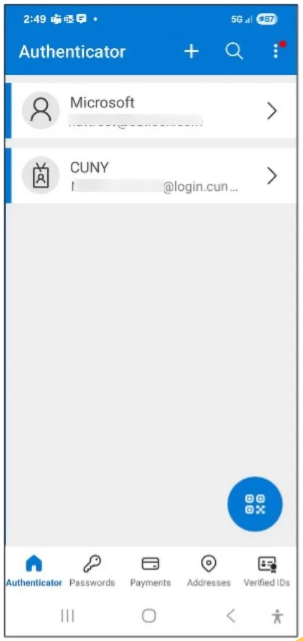
Step 7: Open Microsft Authenticator -
Tap Verified IDs, then Scan a QR code.
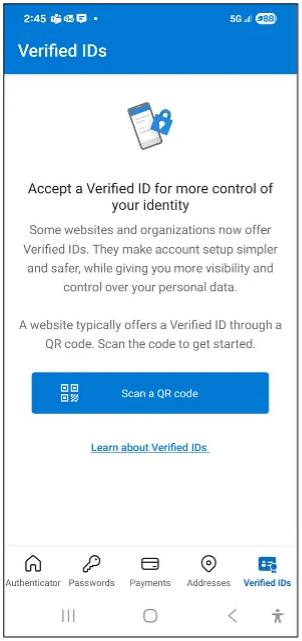
Step 8: Tap Verified id then Scan QR code -
Scan the QR code shown on your computer (Read: It is like taking a picture with your phone. Move the phone until the box symbol on the screen shows on your phone)
- A new MFA account will be added to Authenticator, generating a code that refreshes every 30 seconds.

Step 9: Scan the QR Code -
On the setup page, click Verify Now.

Step 10: On the setup page click Verify Now -
Enter the code from Authenticator in the Verification Code field. (Note: If the code is about to expire wait for it to refresh)

Step 11: Enter the code from Authenticator -
Click Verify and Save.
-
Log out of the CUNY Login portal and close your browser..